
Contributing to OpenStreetMap on your phone via CoMaps and StreetComplete
Last Updated on 4. June 2026
CoMaps: an open source alternative to Google Maps
A friend of mine used Organic Maps to keep track of all the places he had visited and to plan his bike routes. It uses the map data from OpenStreetMap. Organic Maps is free to use, open source and does not require registration. All of this intrigued me, and because I’m travelling a lot on foot and on my bike, I started using it myself.
I switched to CoMaps a while later. CoMaps is a fork of Organic Maps by some of the developers who were unhappy with Organic Maps’ leadership.
How I got hooked on improving the maps myself
While I was on a bike tour, I noticed that the bench I was making a small stop on was not mapped. I wondered if I could add it myself, so other people would benefit from it. And I could! What felt like a minor addition at the time quickly turned into a new hobby for me. It scratches the same itch that many video games about collecting or completing things do, but in contrast it has actual real world value to other people and yourself.
You can theoretically add points offline without creating an OpenStreetMap account, but then all the changes are stored locally on your phone. The real fun comes from uploading the data and helping complete the maps for everyone.
Creating an OpenStreetMap account
There is no CoMaps account; instead, you need an OpenStreetMap account to add missing data to the maps. You then link this account to CoMaps.
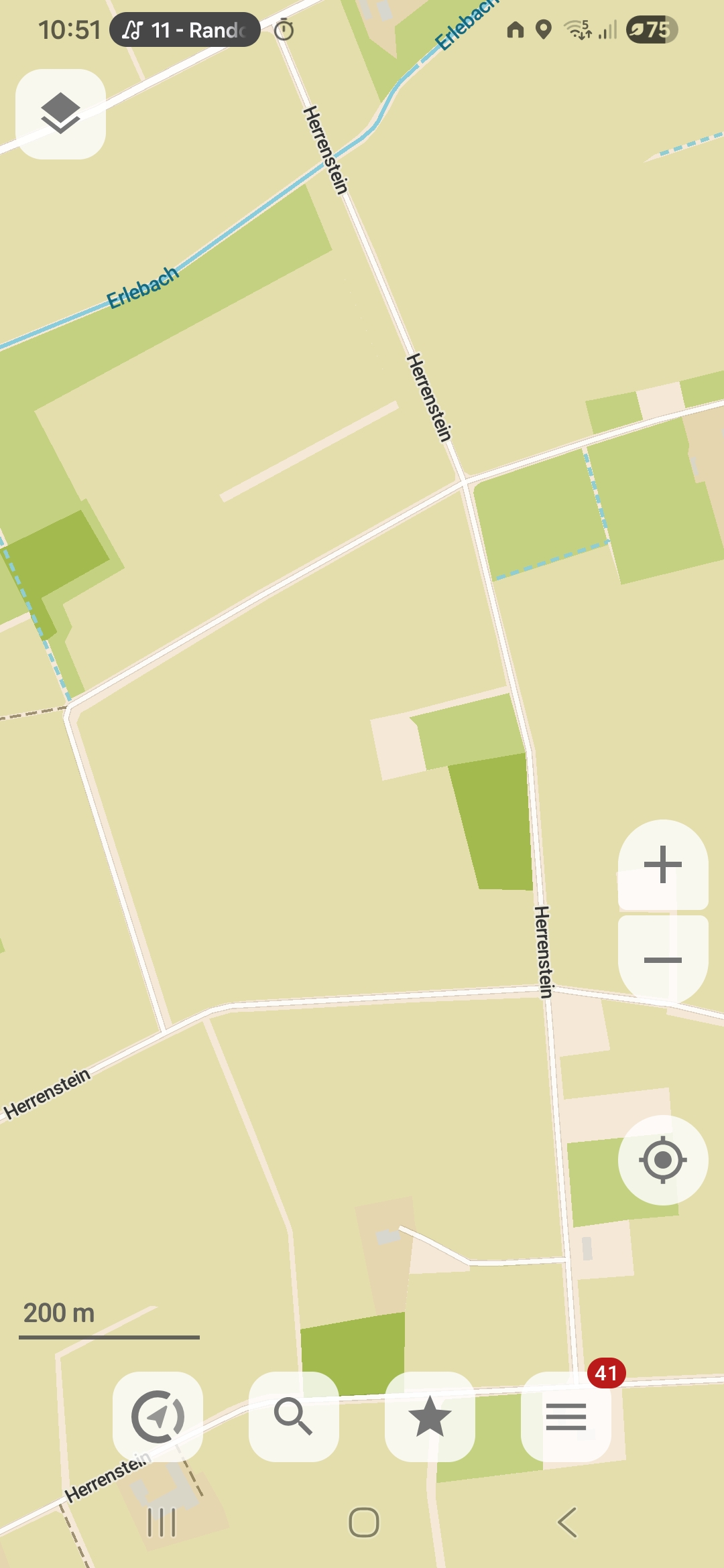
To create an OpenStreetMap account, tap the hamburger menu (the three horizontal lines) at the bottom right of CoMaps.
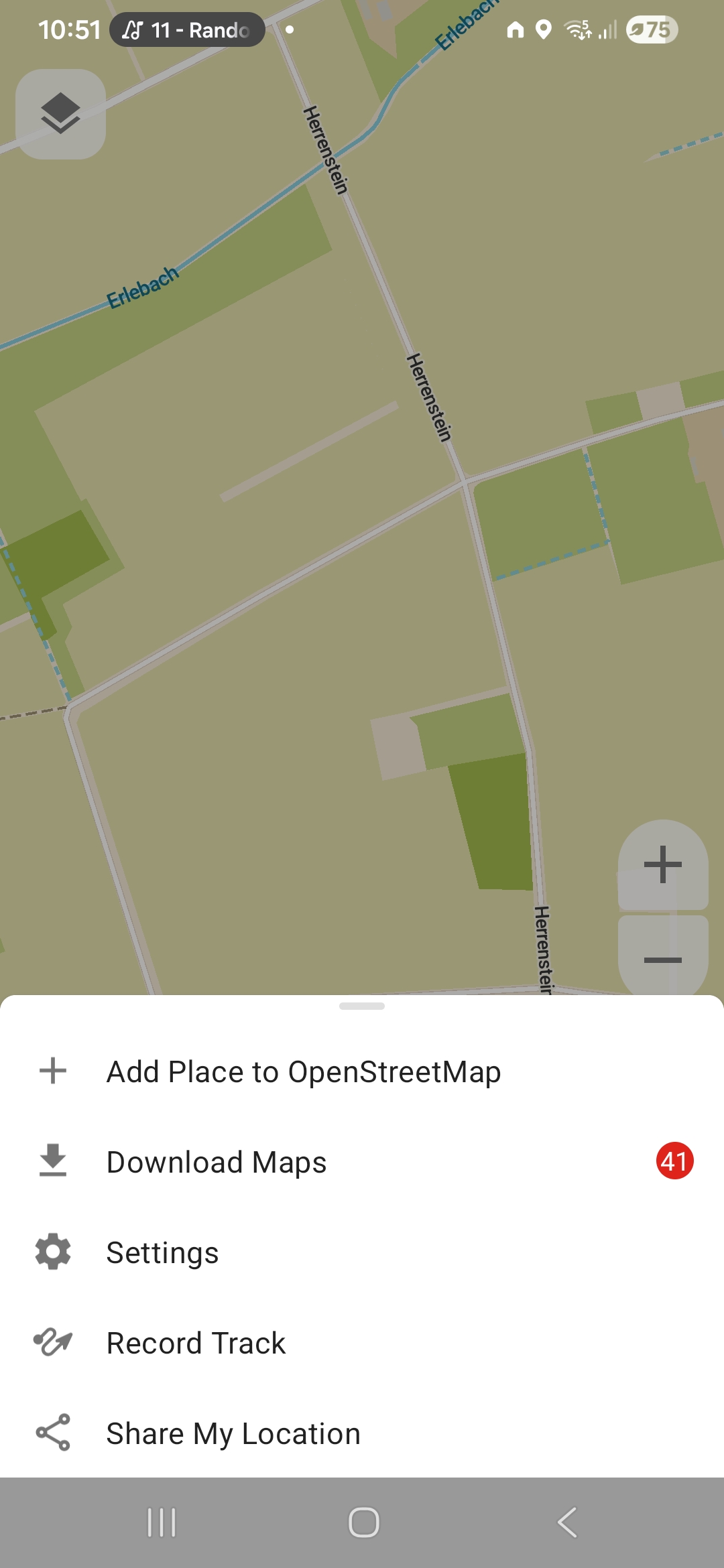
Next, tap on Settings.
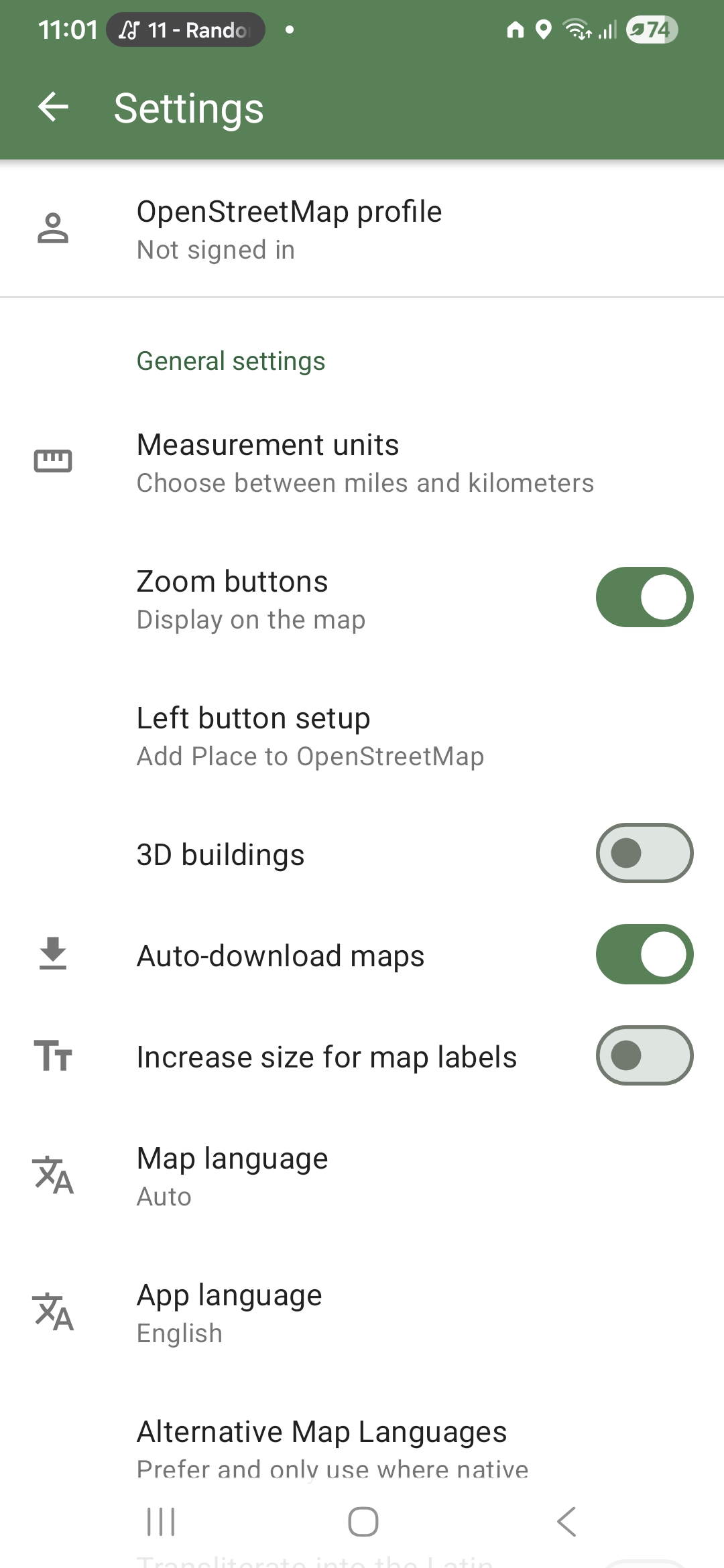
Tap on OpenStreetMap profile (Not signed in) at the top.
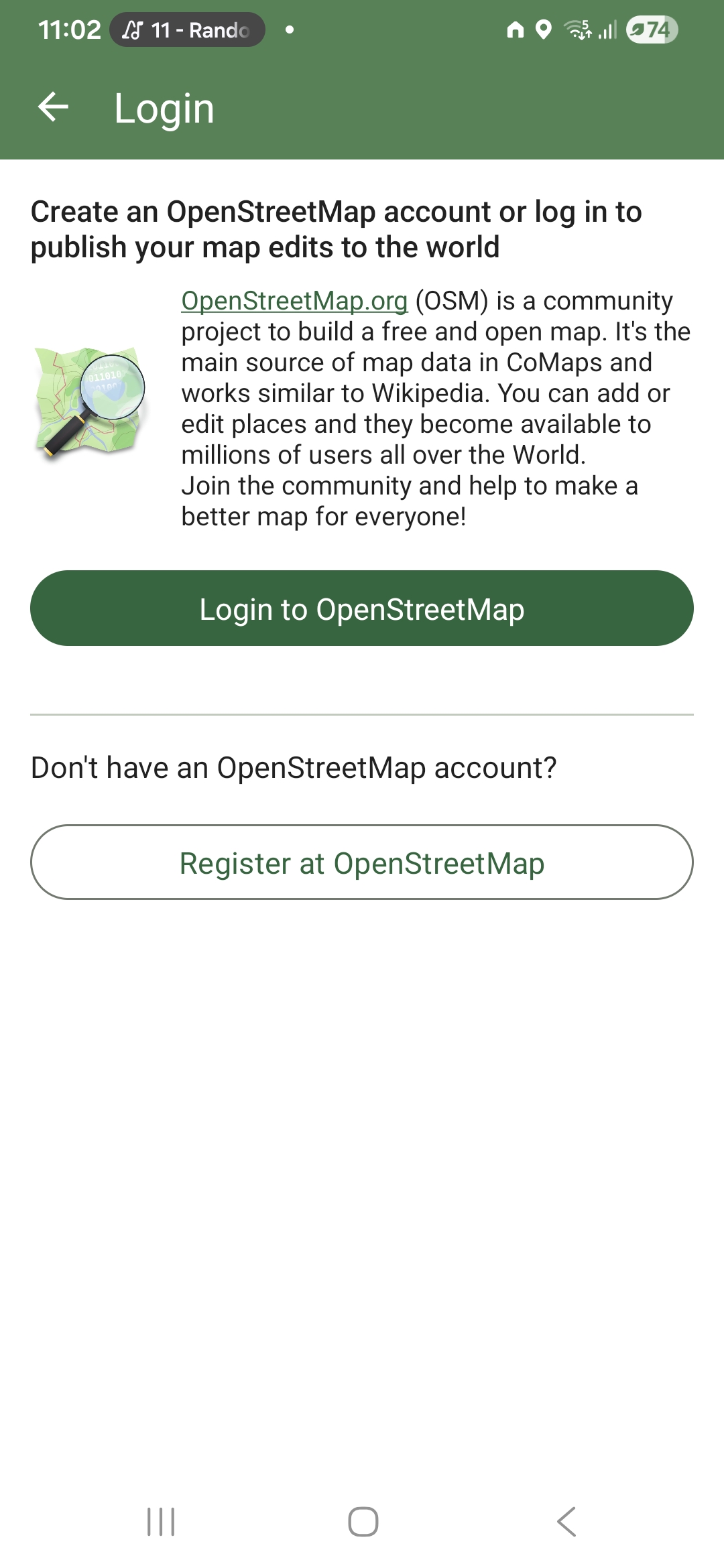
Tap on Register at OpenStreetMap. Follow the steps there and link your account.
Adding a shortcut button for adding places
By default, you have to first tap the hamburger menu and then choose Add Place to OpenStreetMap to add new things. This can get cumbersome if you start adding more and more places. Luckily there’s a shortcut.
Open the hamburger menu and then go to Settings. Tap on Left button setup and choose Add Place to OpenStreetMap. The button at the lower left now adds places instead of showing the About page.
Adding your first place
Let’s assume you have found an unmapped bench, a trash bin or a bicycle parking spot. To add it, tap the + button at the lower left. If you don’t have a + button there, follow the steps in the previous section. Move the crosshair to the desired location – try to be as precise as possible. Then press the checkmark button at the lower right and select the type of place you have found.
The place will appear instantly on your map, but it might not be uploaded to the OSM servers right away. To check if it has been published, open the Settings, tap on your profile name, then tap on Your editing history.
Deleting something that no longer exists
You can’t delete places via CoMaps right away on your own, but you can leave a public note that the place does no longer exist. Users who use OSM on the desktop in a browser can see these notes and delete the place.
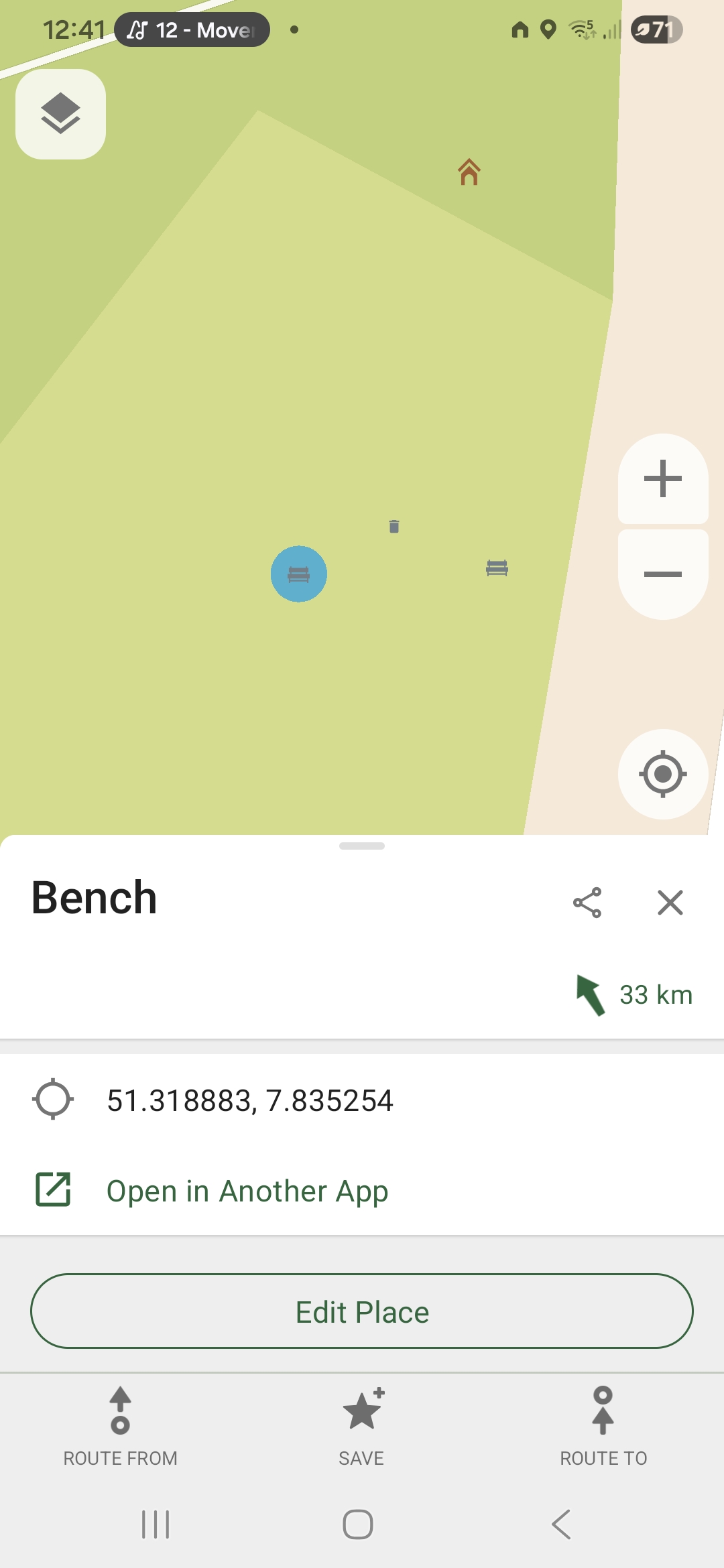
To delete something (for example a bench that is no longer there), tap on the bench to select it. Then drag the place’s name at the bottom upwards to reveal a menu with more details. Tap on Edit Place, then tap on Place does not exist.
Limitations of CoMaps’ editing features
CoMaps’ main purpose is navigation; the editing features are limited. You can for example not create or modify roads, add new buildings, add bollards or trees. If you wish to delve deeper into these more complex editing tasks, you can perform them directly on openstreetmap.org on a computer. You do now have an account there, after all. Simply log in, then click the green Edit button at the upper left. I will not cover any of the editing details here because there is an excellent interactive tour that explains everything.
Further recommendation: StreetComplete
If you want to get serious about adding missing data while you are out and about, I can highly recommend StreetComplete. Just like CoMaps, you can link it to your OSM account. StreetComplete only focuses on adding missing map data, you can’t use it for navigation. Its user interface is exceptionally easy to use and a joy to look at. It uses some light gamification elements to keep you hooked.
StreetComplete shows you all the missing data around your current location (or anywhere else, if you like).
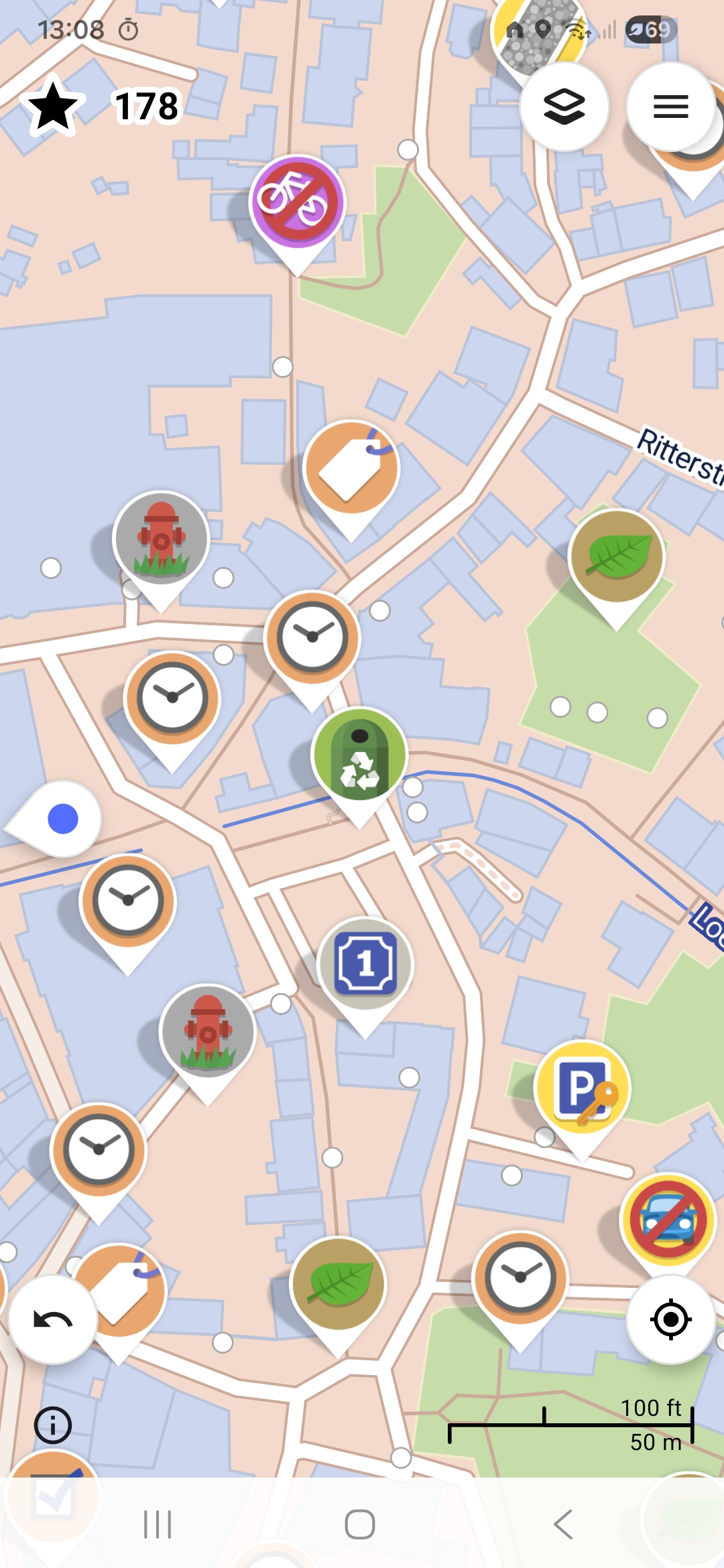
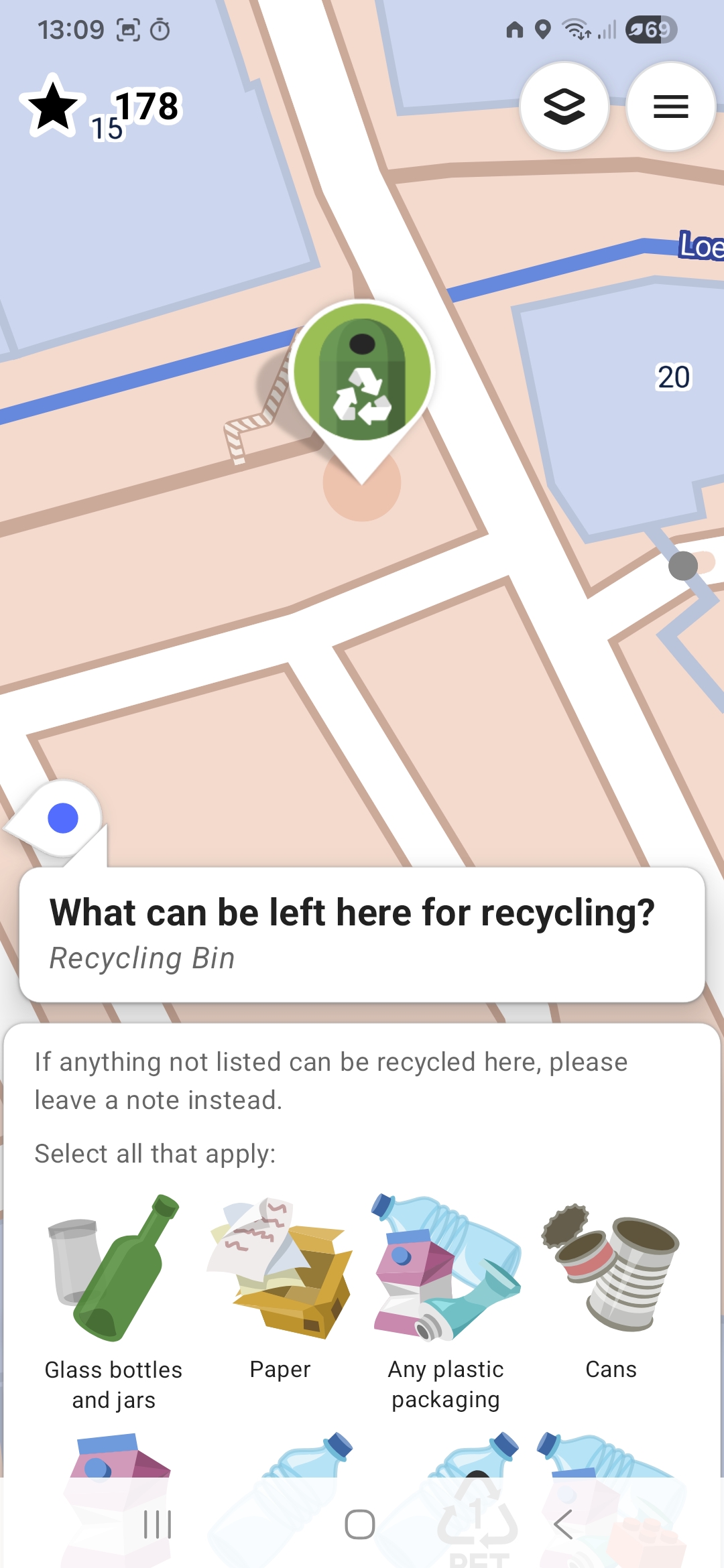
Tap any of the icons to fill in the missing data. For example, the recycling container does not have any details about what kind of things it is used for.
There’s a total of 190 types of data that can be filled in. You can toggle every single one on on or off by tapping the hamburger menu at the top right, tapping Settings, then tapping Quest selection and display order.